Appearance
User & Staff Management
This chapter covers the three "who has an account" pages: Users (everyone, read-only-ish overview), Employees, and Agents.
Users
What it's for
A single list of every account in the system, across all roles, with quick activate/deactivate/delete controls.
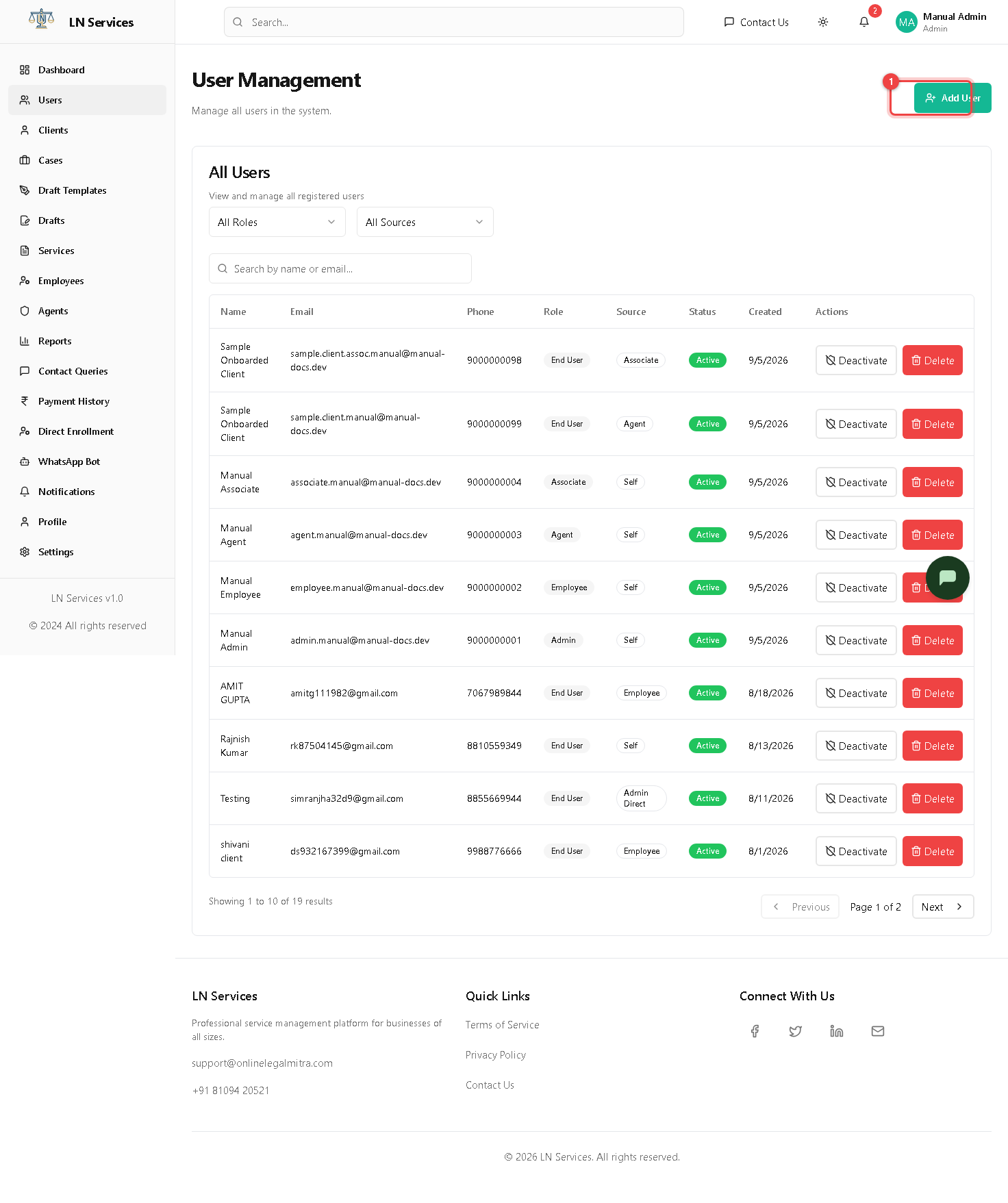
Steps: add a new user
- Click ① Add User.
- Fill in Name, Email, Phone, and pick a Role (Client, Employee, Agent, Associate, or Admin).
- Click Create User. They receive an email to set their own password — admin never sets or sees it.
Steps: deactivate or delete someone
- Click Deactivate on their row to block their login without deleting their data (click again to reactivate).
- Click Delete to permanently remove the account — this cannot be undone.
Technical Notes
List: GET /api/admin/users (filterable by role, sourceTag, search). Create: POST /api/admin/users — this uses the invite flow (userService.inviteUser), which sets a random unguessable password server-side and emails the user a set-password link; there is no way for an admin to see or choose a staff member's password. Deactivate/Activate: PATCH /api/admin/users/:id/deactivate / /activate. Delete: DELETE /api/admin/users/:id.
Employees
What it's for
Manage employee accounts specifically, including which service modules (trademark, copyright, patent, design, GST) each employee is allowed to work on — this drives skill-based case assignment.
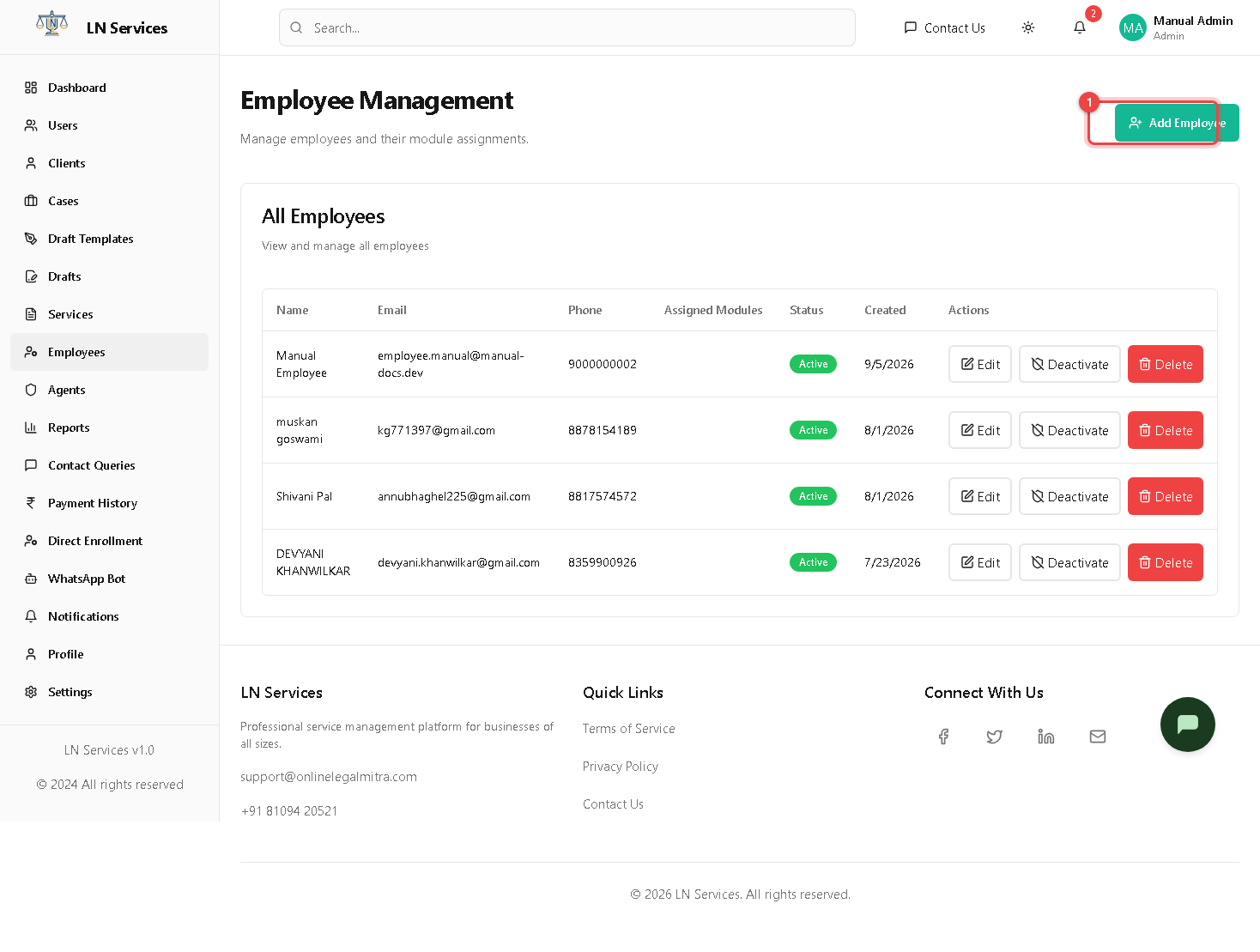
Steps: add an employee
- Click ① Add Employee.
- Enter Name, Email, Phone, and tick the service modules they should handle.
- Save. Use the row's Edit button any time to change their modules, or Activate/Deactivate/Delete to manage their access.
Technical Notes
GET /api/admin/users?role=employee, POST /api/admin/employees, PUT /api/admin/employees/:id, DELETE /api/admin/employees/:id. Assigned modules are stored on User.assignedModules and referenced by case auto-assignment logic.
Agents
What it's for
Manage agent accounts — the sales/onboarding role that brings clients onto the platform and earns commission. Includes a special "tracking-only" mode for CA/Partners who refer clients but never log in themselves.
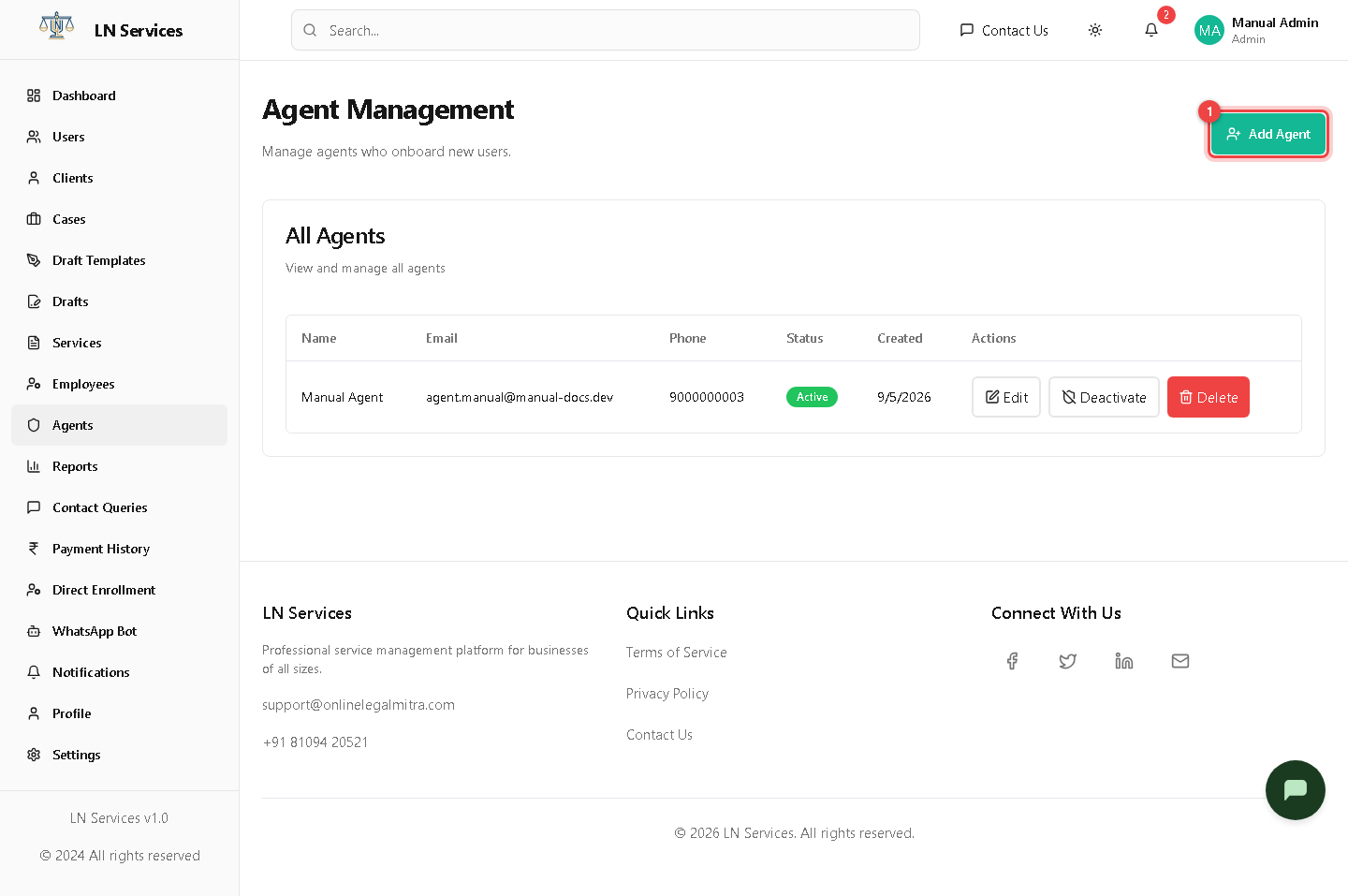
Steps: add an agent
- Click ① Add Agent.
- Enter Name, Email, Phone.
- If this agent is a CA/Partner who should never get portal access, tick "Internal tracking only — CA/Partner, no login" — they'll still show up wherever you attribute a referral to them, but they can't sign in.
- Save. Use Edit / Activate / Deactivate / Delete per row as needed.
Technical Notes
GET /api/admin/users?role=agent, POST /api/admin/agents, PUT /api/admin/agents/:id, DELETE /api/admin/agents/:id. Agent performance fields (commissionRate, totalCommissionEarned, performanceScore) live on the User model and feed the Reports page.