Appearance
Case Management
My Cases
What it's for
Every case assigned to you, with status and progress at a glance.
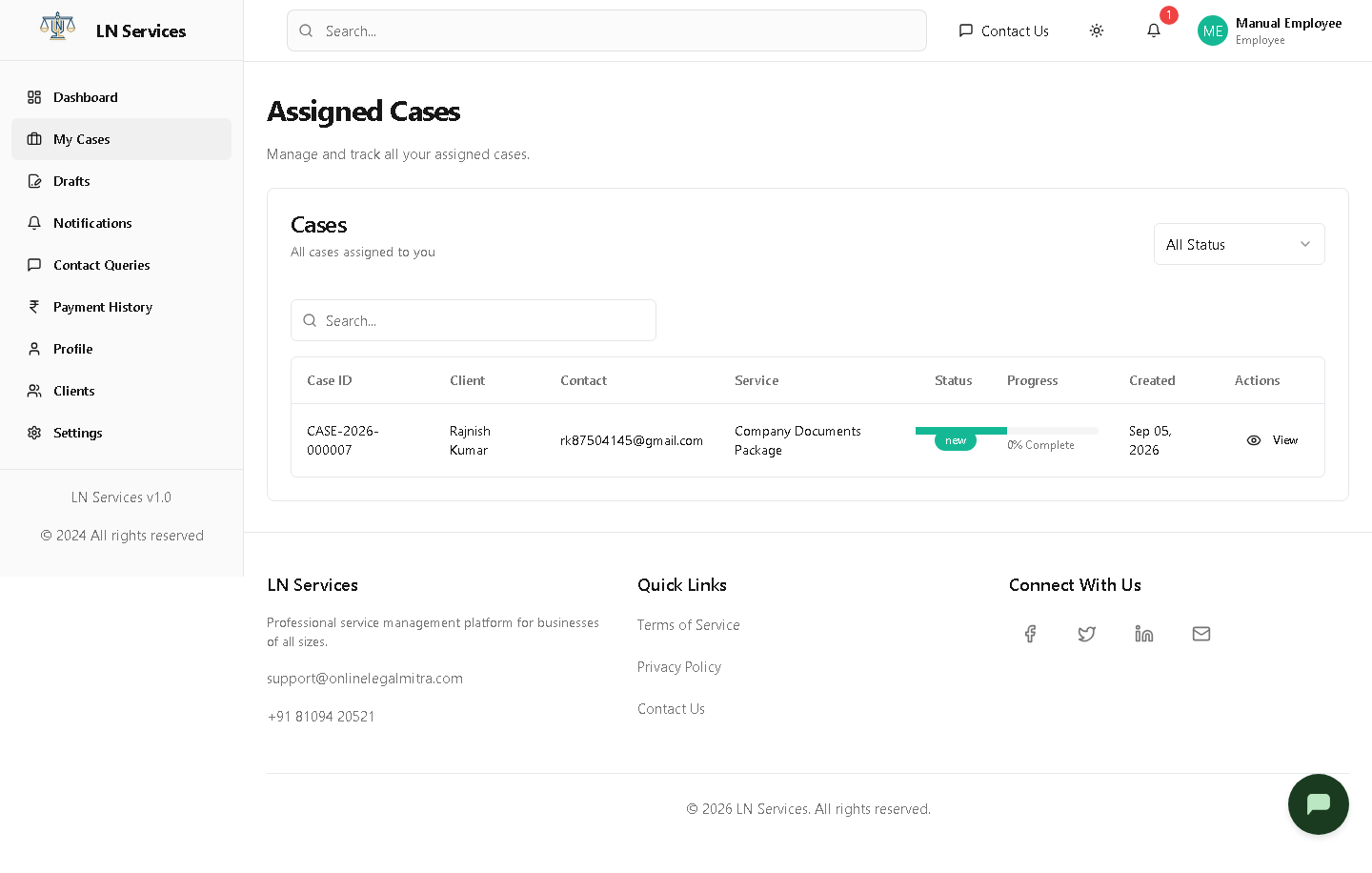
Steps
Use the Status filter or search box to find a case, then click View to open it.
Technical Notes
GET /api/employee/cases — returns only cases where employeeId matches your own account (compare to Admin's GET /api/admin/cases, which returns every case).
Case details
What it's for
Everything about one case: client and service info, billing, documents, and the actions that move it forward.
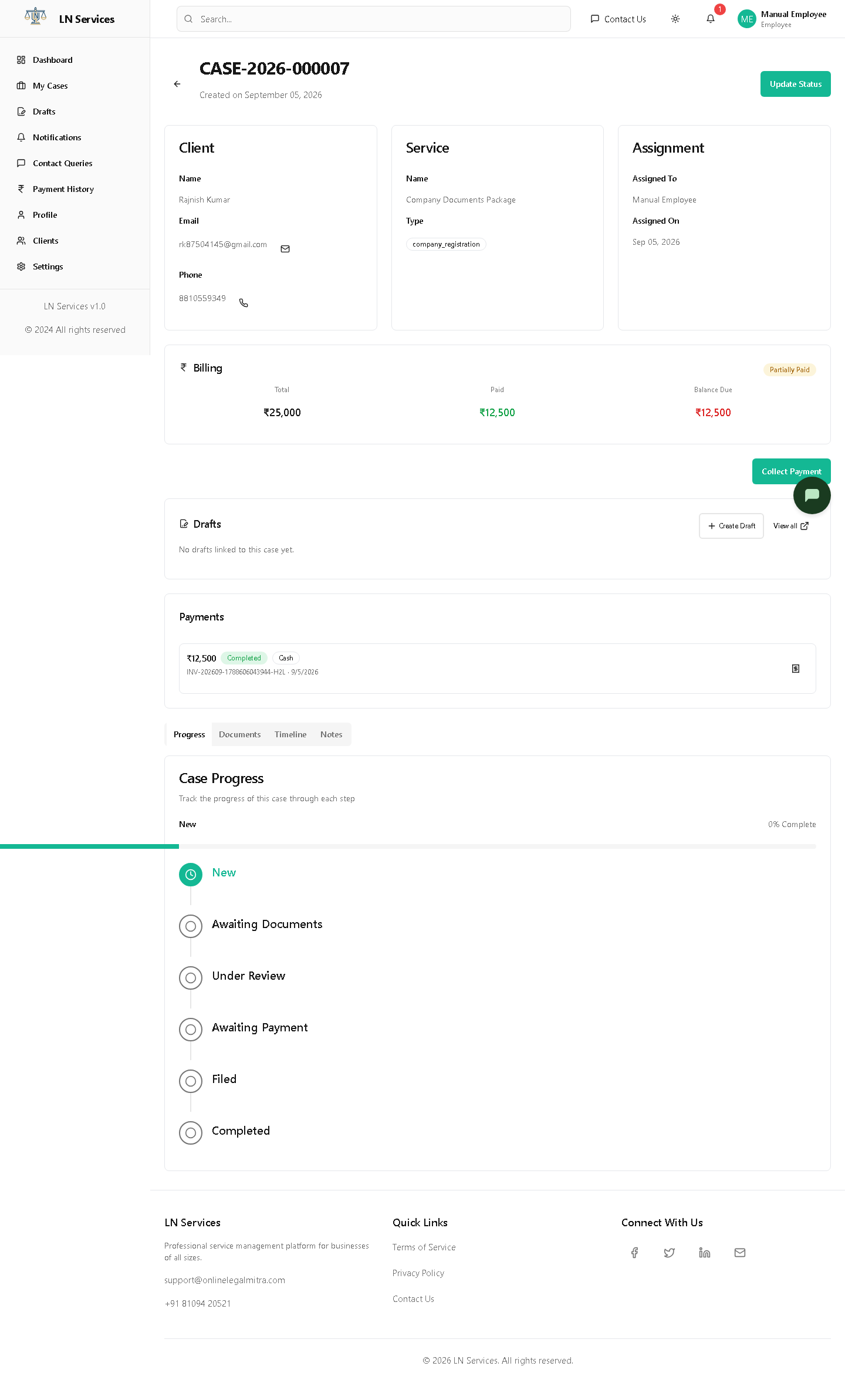
Steps: update the status
Click Update Status — a dialog opens showing the current status and a dropdown of valid next steps, plus an optional note.
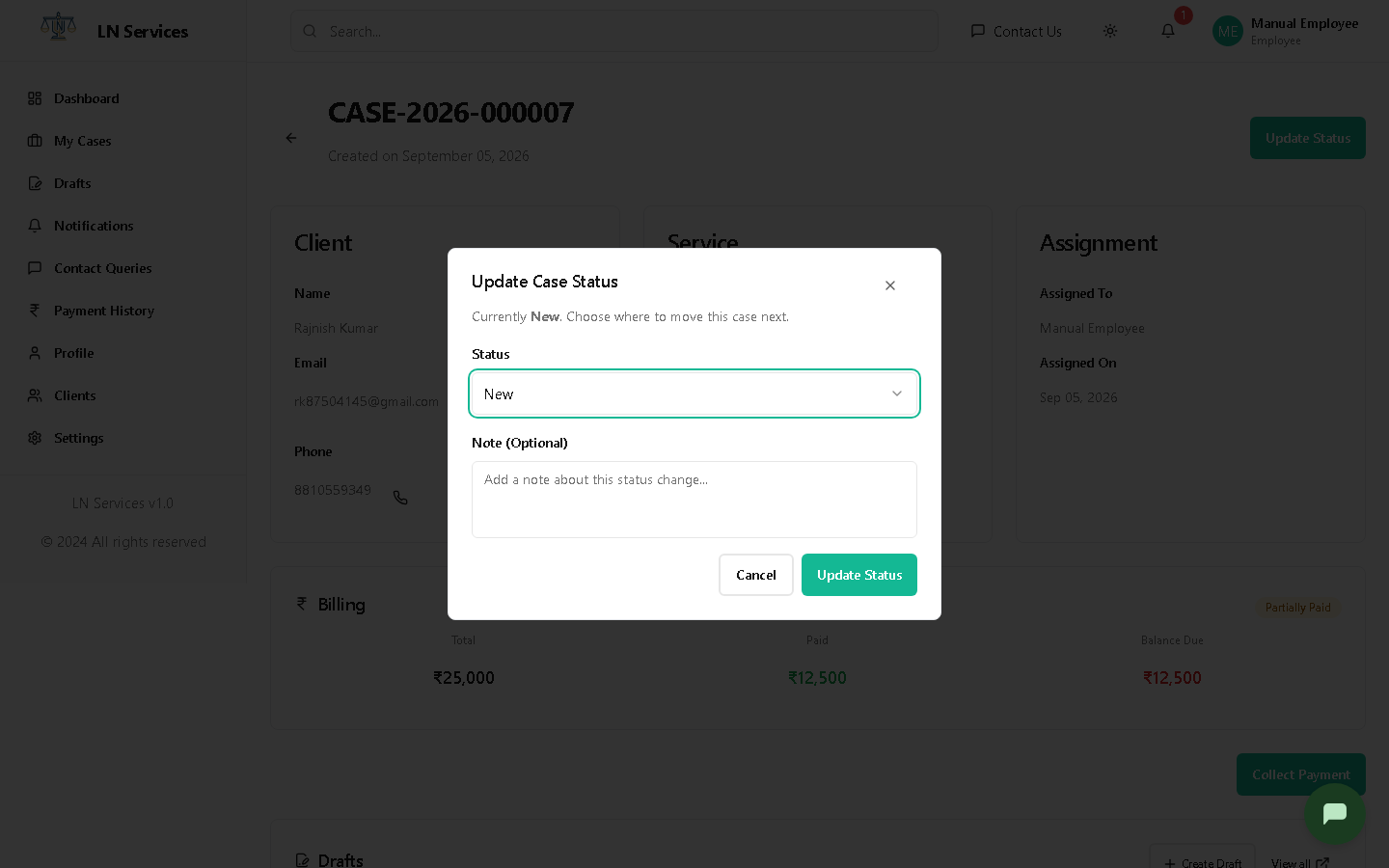
Pick the new status, optionally explain why, and click Update Status to confirm.
Steps: collect a payment
If there's a balance due, click Collect Payment.
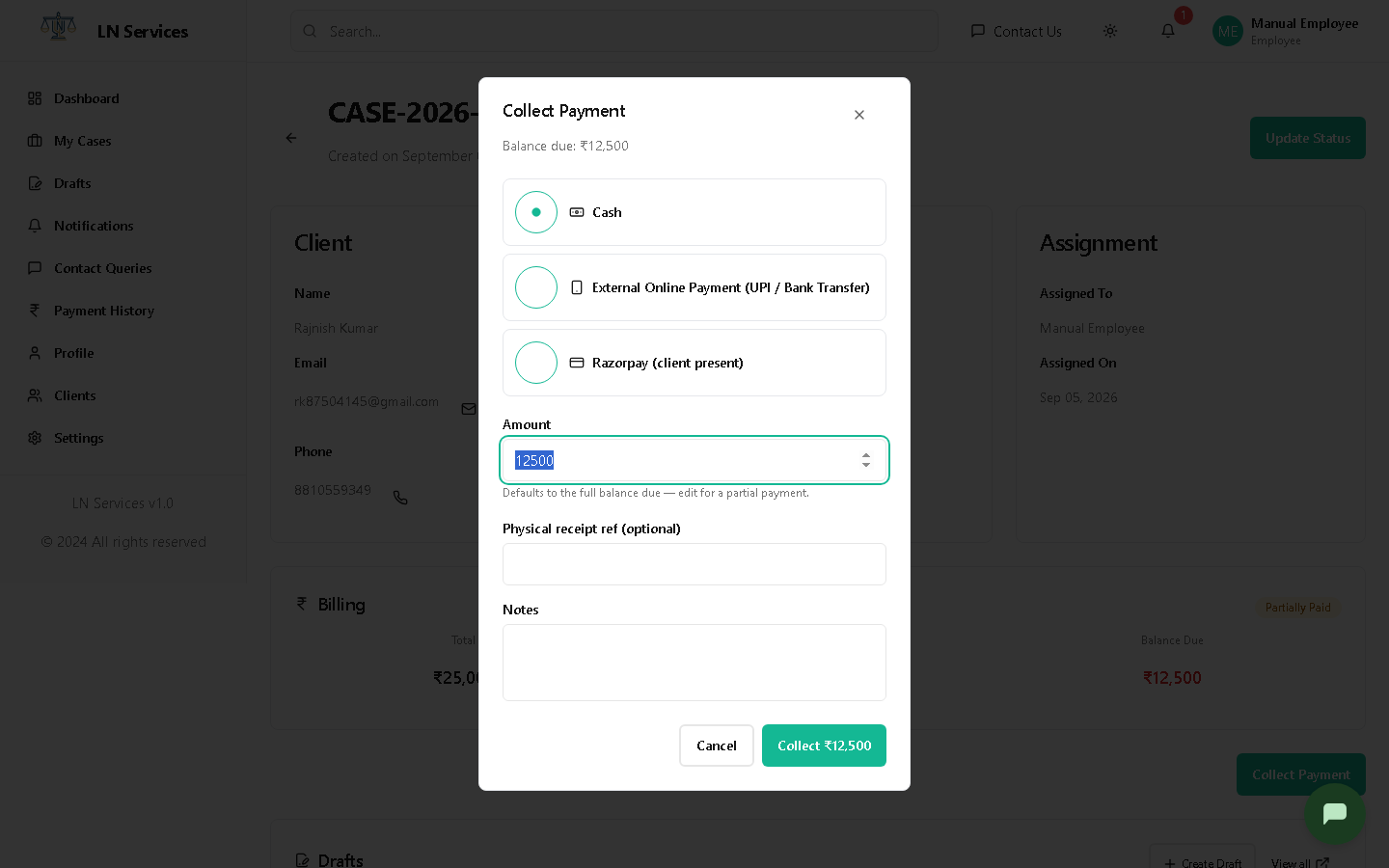
Choose Cash, External Online Payment (UPI/Bank Transfer), or Razorpay (client present), confirm or edit the amount (it defaults to the full balance — edit it for a partial payment), fill in any method-specific details, and click Collect ₹....
Steps: add an internal note
Open the Notes tab and click Add Note.
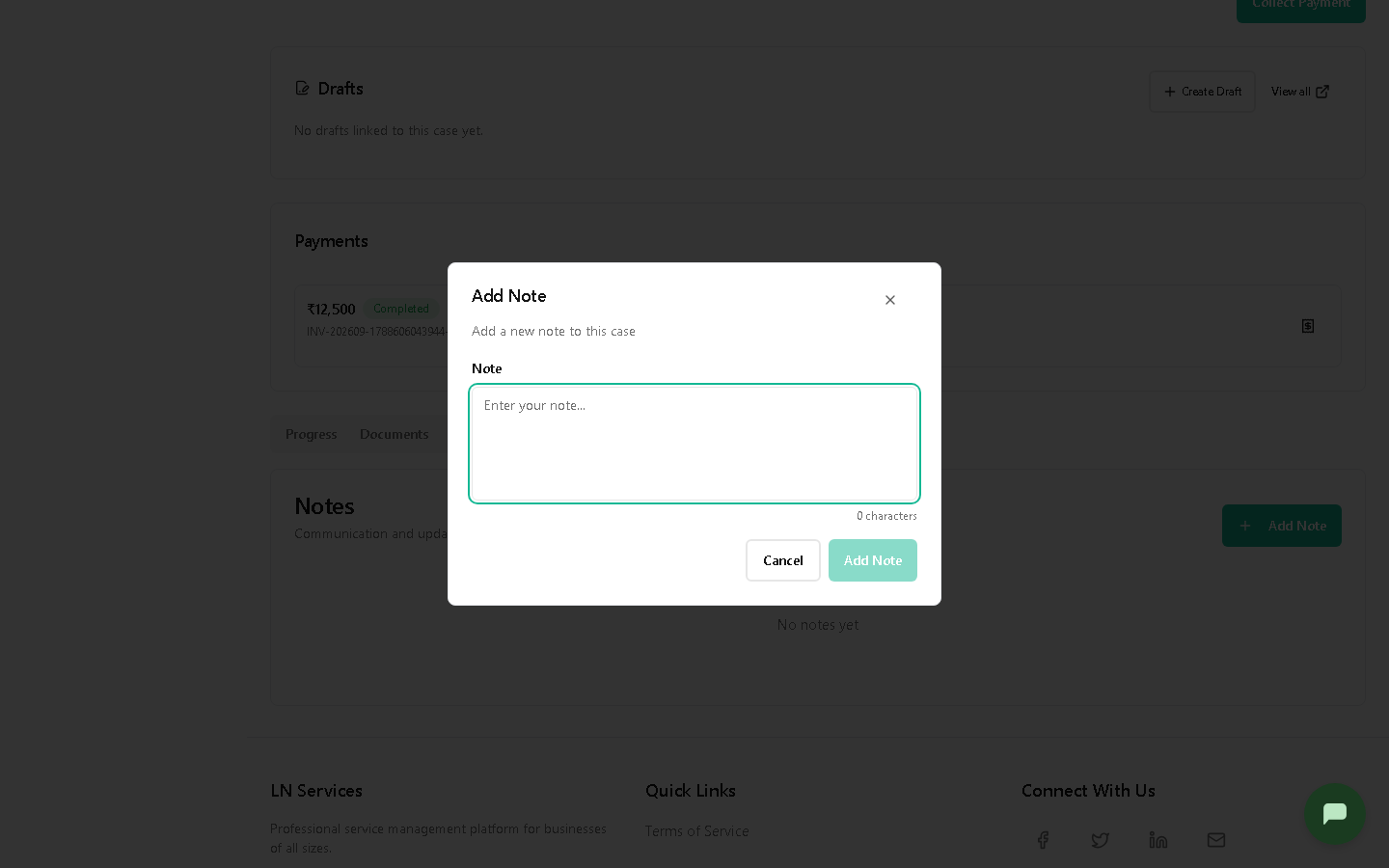
Type your note and click Add Note — it's visible to any staff member who opens this case, not the client.
Technical Notes
GET /api/employee/cases/:id. Status change: PUT /api/employee/cases/:id/status (server rejects any status not in the valid next-step list for the current one). Payment collection posts to the case's payment endpoints depending on method (cash/external/Razorpay order+verify) — same underlying flow Admin uses, just role-scoped. Notes: POST /api/employee/cases/:id/notes. There's no permission difference from Admin here — an Employee assigned to a case has the same case-management powers Admin does over it.